

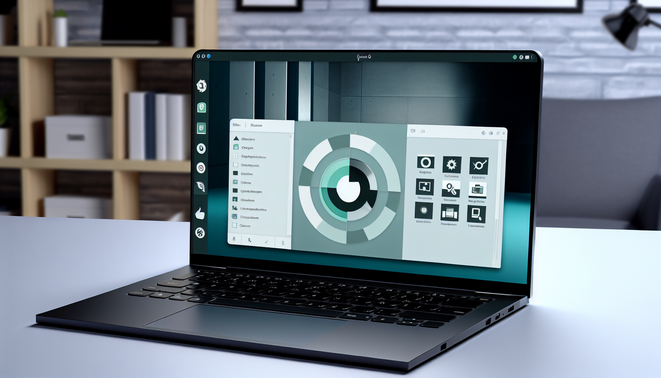
Introduction to Zorin OS
Zorin OS is a Linux-based operating system designed primarily to provide a user-friendly alternative to Windows and macOS. Developed by the Zorin Group, this operating system aims to cater to users of all skill levels, making the transition from traditional desktop platforms smoother and more intuitive. Its emphasis on performance and security, combined with a customizable desktop environment, makes Zorin OS an appealing choice for many users Zorin OS Features.
Features of Zorin OS
Zorin OS is a user-friendly Linux distribution designed to provide a smooth transition for users coming from Windows or macOS. Here are some key features that enhance its user experience:
- Zorin Appearance: Users can customize the look and feel of their desktop environment to resemble Windows, macOS, or a traditional Linux setup, making it visually appealing Source: Zorin OS Website.
- Performance and Security: Built on a lightweight base, Zorin OS runs efficiently even on older hardware, with advanced security features like built-in firewalls Source: Tech Times.
- Zorin Connect: This innovative feature allows users to connect their smartphones to their desktop, enhancing productivity through file sharing and notification syncing Source: Zorin Blog.
- Software Management: The built-in Software Store makes installing applications simple and intuitive, allowing for easy access to a wide range of software Source: It’s FOSS.
- Gaming Support: Zorin OS supports platforms like Steam and Lutris, enabling access to numerous games, including Windows titles via Wine and PlayOnLinux Source: Digital Trends.
- Dual Booting and Installation Options: Flexibility in installation allows users to dual-boot alongside Windows Source: ZDNet.
System Requirements
To run Zorin OS effectively, users need to meet specific hardware and software requirements. Here’s a breakdown:
Minimum System Requirements:
- Processor: 1 GHz 64-bit dual-core processor
- RAM: 2 GB
- Storage: At least 10 GB of free disk space
- Graphics: A graphics card capable of 1024×768 resolution
- Bootable USB or DVD: For installation media
Recommended System Requirements:
- Processor: 2 GHz dual-core (or better)
- RAM: 4 GB or more
- Storage: 20 GB of free disk space
- Graphics: A graphics card capable of 1366×768 resolution
- Internet: Broadband connection for updates
For a more robust experience, consider Zorin OS Lite for older machines [Source: Zorin OS Official Download Page].
Installation Process
The installation of Zorin OS involves a few straightforward steps:
- Download the Zorin OS ISO file from the official website [Source: Zorin].
- Create a bootable USB drive using tools like Rufus or Etcher [Source: Rufus].
- Access your BIOS/UEFI settings and change the boot priority to boot from the USB drive.
- After booting from USB, select “Try Zorin OS” or “Install Zorin OS”.
- Follow the installation prompts including language choice, disk partitioning, and user account setup [Source: Zorin Help].
Finally, restart your computer once installation is complete and remove the USB drive to boot into Zorin OS.
Customization Options
Zorin OS offers a wealth of customization options to tailor the user experience:
- Desktop Layouts: Switch between various desktop layouts to find what suits you best.
- Themes and Icons: Select themes and icon packs to enhance visual aesthetics; additional options can be found online [GNOME-Look].
- Fonts and Colors: Customize system fonts and color schemes for an enhanced user interface.
- Keyboard Shortcuts: Modify or create shortcuts to optimize your workflow.
- Panel Configuration: Adjust the panel’s position and contents to better suit your needs.
- Extensions and Gadgets: Install GNOME extensions to add functionality and features.
- Startup Applications: Control which applications launch at startup [Source: Zorin OS website].
Software Availability
Zorin OS supports a variety of software through its Software Store and additional platforms like Flatpak and Snap:
Native Applications
Pre-installed applications include LibreOffice and GIMP, while the Software Store offers easy access to install more software.
Installing Software
To install applications, use the Zorin Software application for simple browsing and searching.
Flatpak and Snap
For more niche applications, users can enable Flatpak and Snap support with terminal commands for a broad range of software availability.
For in-depth articles on using Flatpak and software specific to Zorin OS, check out [using Flatpak on Linux] and [best applications for Zorin OS].
Community Support
Zorin OS users benefit from a robust community support network. Key resources include:
- The official Zorin OS forum for troubleshooting and tips.
- The Zorin OS subreddit for community discussions and advice.
- Platforms like Ask Ubuntu and Super User for broader Linux help [Source: Zorin OS Help].
Conclusion
In summary, Zorin OS embodies a user-friendly and versatile computing experience that appeals to both newcomers to Linux and seasoned users. With extensive customization options, robust software compatibility, and strong community support, it serves as a vital alternative to traditional operating systems. By choosing Zorin OS, users not only benefit from its unique features but also contribute to the broader Linux community, embodying collaboration and innovation in technology today.
Sources
- Zorin OS – Features
- Zorin OS Website
- Tech Times – Zorin OS 2023 vs Windows 11: A First Look at the New Features
- Zorin Blog – Zorin Connect: Access Your Phone from Your PC
- It’s FOSS – Best Linux Software 2023
- Digital Trends – Best Linux Gaming Distro
- ZDNet – How to Dual Boot Zorin OS and Windows 10
- Zorin OS Official Download Page
- Rufus – Create Bootable USB Drives
- Zorin Help – Zorin OS Installation Guide
- Zorin OS – Official Website
- GNOME-Look – Custom Themes
- Your Website – Using Flatpak on Linux
- Your Website – Best Applications for Zorin OS
Recent Comments